AI Video Ad Generator: How to Turn One Product Shot Into a Short Social Ad Without Filming or an Avatar
Turn a product photo or text prompt into an animated social ad with MotionVid. Prompt recipes plus the real cost per ad on the Starter and Pro plans.

Co-founder, MotionVid ·
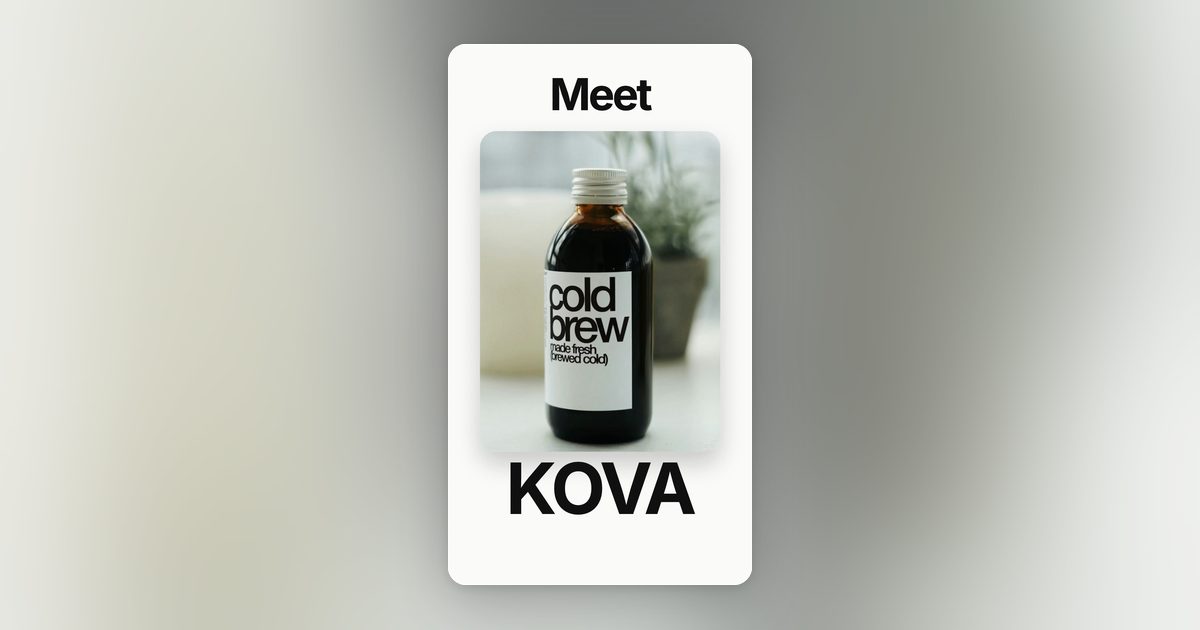
Most of the tools ranking for "AI video ad generator" are built around one idea: an AI avatar reads your script to camera. Creatify, HeyGen, invideo and Nextify all lead with that. It works for some offers, but it isn't what most product ads need. You have a product photo and a one-line offer, and you want it moving on a phone screen by this afternoon.
That's the job MotionVid was built for. Product and logo ads are the most common thing people make with MotionVid. You generate the animated product clip, then generate your hook and call to action as a separate motion graphics clip, and join the two in CapCut, Premiere or whatever editor you already use. No avatar, no filming.
This guide walks through that flow, from a text prompt or a product image to a finished animated social ad. I'll also do the math on what each plan actually costs per ad, because every plan is credit-capped and I'd rather you know that before you sign up than discover it mid-campaign.
What an AI video ad generator does, and which kind you need
Three kinds of tool show up under this search term, and they solve different problems.
The first is the avatar and UGC generator. You paste a script, pick a presenter, and the tool produces a talking-head clip that looks like a creator review. Creatify's homepage promises unlimited ad variations, Nextify advertises more than a thousand avatars, and HeyGen turns product data or ad copy into a presenter video. If your ad depends on a person saying words, that's your category.
The second is the motion graphics generator. It takes a product image or a plain text description and produces animation: the product rotating, the price tag sliding in, the headline bouncing on beat, a before-and-after wipe. Nothing speaks. You see this format from DTC brands and SaaS companies on Instagram Reels and LinkedIn, and it's what MotionVid does.
The third is the template editor, and Canva's video ad maker is the obvious example. It's strong for stitching existing footage together with stock clips, but weak when the footage doesn't exist yet.
Ask one question: is the thing you're selling best shown by a person talking about it, or by the product itself moving? For physical products, software interfaces, apps and offers built around a number (a price, a discount, a delivery time), the second wins almost every time.
What to have ready before you open the tool
Five minutes of prep saves an hour of regenerating.
- One clean product image. A cutout on a plain background or a straight-on studio shot. A lifestyle photo still works for image-to-video, but the animation will move the whole scene rather than isolating the product.
- The hook in eight words or fewer. This becomes your first text layer, and it has to be readable on a phone in under a second.
- The offer and the call to action. "Free shipping over $50. Shop now." Two short lines, nothing clever.
- Target platform. Reels, TikTok and Stories are vertical. Feed posts and LinkedIn tolerate square. Decide now, because each export counts against your monthly cap.
No product image at all? That's fine. Text-to-video can generate the product scene from a description, which I cover in step one.
How to make an animated social ad with MotionVid in 3 steps
Step 1: Generate the product clip from a prompt or a product image
Open the video tool and choose your input. If you have a product photo, use image-to-video: upload the shot and describe the motion you want. Keep the prompt about camera and movement, not about the product itself, because the image already carries that.
Example prompt for a skincare bottle:
``` Slow 360 rotation on a matte pastel surface, soft studio light, subtle shadow, 5 seconds. ```
If you're starting from text, use text-to-video and describe both subject and motion:
``` Wireless earbuds case opening on a dark reflective surface, camera pushes in slowly, cool blue rim light, 5 seconds. ```
Animora, MotionVid's video model, gives cleaner product shots when the prompt names one subject, one surface and one light description. Crowded prompts produce crowded clips.
Aim for 5 to 8 seconds. The words go in a separate clip in the next step, so this one only has to make the product look good.
Step 2: Generate the hook, offer and CTA as a motion graphics clip
This is the step where a nice product shot turns into an ad. Open the motion graphics tool and write out the hook, the offer line and the call to action. MotionVid generates an animated clip from that text, so you describe how the words should move in the prompt instead of keyframing anything. If you don't want to write the prompt from scratch, start from one of the templates.
``` Bold white text on a deep navy background. "Dry skin by 3pm?" pops in, then "20% off your first order" slides up, then "Shop now" pulses. Text centered, 8 seconds. ```
Two rules matter on mobile. Ask for the text to sit in the center of the frame, because Instagram and TikTok cover the top and bottom with their own buttons. And give each line at least 1.5 seconds on screen, since a hook that flashes for half a second doesn't get read. Once you have both clips, join them in the editor you already cut ads in, whether that's CapCut or Premiere.
For transformation products (cleaning, skincare, a messy dashboard turned tidy), use the before/after tool instead of a text clip. It's built to show one state turning into another, and that's the format those brands already run because it shows the result without a word of copy.
Step 3: Export and generate your hook variants
Put together the vertical cut for Reels and TikTok first, and only make a feed version if you're actually buying that placement. Every download counts toward your plan's monthly export-minute limit, so check the cost section below before you decide how many placements and variants to make.
Then make variants. The cheapest test you can run on a paid social ad is changing the first two seconds. For each new hook, run a fresh motion graphics generation with the new line and pair it with the same product clip from Step 1. Three hooks means three short text generations on top of one product clip, which is one full ad set. Text clips are short and simple to regenerate, while the product clip is the one you want to lock in once. That's why I keep the product and the words as separate clips instead of regenerating a complete video for every idea.
The cost per ad on each MotionVid plan
Every MotionVid plan is credit-capped. There's no unlimited tier and no lifetime deal, and the cheaper plan you might see in old reviews is legacy only and no longer sold. The table shows the current monthly prices (they changed on 15 August 2026), what each plan adds, and what one ad set costs if you follow the workflow above.
| Plan | Price per month | Credits per month | Export minutes and ad sets (4 each) | Cost per ad set (export minutes only) | What the plan adds | |---|---|---|---|---|---| | Starter | $19 | 500 | 60 export minutes, 15 ad sets | about $1.27 | MCP connector for making videos from Claude and other AI apps | | Pro | $29 | 800 | 100 export minutes, 25 ad sets | about $1.16 | 4K infographic exports | | Ultimate | $49 | 1,500 | see pricing page | see pricing page | Developer API and bring-your-own-keys | | Creator | $249 | 8,000 | see pricing page | see pricing page | Developer API and bring-your-own-keys, with the largest credit allowance |
Why four export minutes? In Steps 1 to 3 you export the product clip and each hook clip separately, then join them in CapCut, so an ad set with three hooks comes to one product clip plus three hook clips, and each clip under a minute and a half uses one export minute.
The cost per ad set counts export minutes only. Credits work differently: you spend them on every generation, and regenerations spend credits too. When a product clip or a hook needs another pass before the motion looks right, those credits come out of the same monthly allowance, so depending on how often you regenerate, your credits may run out before your export minutes do. You'd finish fewer ad sets than the table shows and pay more for each one, which makes $1.27 and $1.16 the best case.
Full plan details are on the pricing page.
Prompt recipes that work for product ads
Start from one of these five patterns rather than a blank prompt box. Fill the brackets, keep the sentence short, and change one thing at a time when you regenerate.
Hero rotation. "[Product] on [surface], slow 360 turn, [one light description], 5 seconds." The default for any physical product that looks good from all sides. Works from a photo via image-to-video or from text alone.
Reveal. "[Product] emerges from [water / fabric / smoke / paper], camera pulls back slowly, 6 seconds." Good for launches and for products that are boring to look at when static.
Logo to product. Animate the logo for the first two seconds, then cut to the product clip. MotionVid's logo animation handles the first half; the trick is matching the background colour between the two clips so the cut feels intentional.
Before and after. Two states of the same scene, one wipe. Cleaning products, skincare, organisation tools, any software that replaces a mess. Let the transformation be the hook and keep the copy to a single line of text.
SaaS screenshot. Upload a dashboard screenshot to image-to-video and prompt "slow zoom into [the key metric], soft glow on the highlighted number, 5 seconds." Then put the benefit as a text layer over the top. It works well for SaaS launch posts on LinkedIn, where the number is the story.
Batching hook variants from Claude
If you're running more than a handful of ads a month, writing each variant by hand in the browser gets slow. Every paid MotionVid plan includes an MCP connector that lets you make videos straight from Claude and similar AI apps (setup docs at motionvid.ai/api).
Here's a suggested workflow. Tell Claude once what the product is, who it's for and what the offer is, then ask it for five hooks under eight words each. Cut any that sound like every other ad in the feed, and ask Claude to generate a MotionVid video for each hook that's left through the connector. Put the results next to each other and keep the ones worth spending budget on. If you'd rather script the whole thing, the developer API is on Ultimate and Creator, but most marketers won't need more than the connector.
Mistakes that waste credits
These mistakes burn credits and ad spend without making the ad any better.
- Changing several prompt variables between regenerations. If a clip comes back wrong, change one thing, like the camera move or the lighting, and run it again. Swap the camera move and the lighting together and you won't know which one fixed it, or which one broke the next attempt.
- Putting text at the top or bottom of a vertical frame. TikTok and Instagram Reels lay their own interface over those edges. The caption and username sit along the bottom, and the like and share buttons run down the right side, so a hook placed there gets partly covered on the viewer's phone. Keep text in the middle of the frame, and check the export on an actual phone before it goes live.
- A hook clip background that clashes with the product clip. Cut from a bright yellow text card straight into a product shot on a dark grey backdrop and the join looks like an editing mistake. Take the hook's background colour from something already in the product clip.
- Chasing cinematic. Lens flares and dramatic fog look impressive in a preview and do nothing for a product ad. The clearest shot of the product wins.
Where MotionVid fits next to the other tools on this page
If your ad needs a person on screen talking, use HeyGen or Creatify and don't look back. If you already have footage and just need to lay it out with captions, Canva does that for free.
If the product itself has to move, start with the product-shot ad from the recipes above, since it needs nothing more than a photo you already have. Take the image from your best-performing static ad, animate it into a 6-second clip at the same aspect ratio, and run the two side by side for a week on the same budget. With one variable changed, you'll know whether motion beats your current creative before you commit credits to a full set, and Starter's 60 monthly export minutes leave room for a few versions of the hook. If the test is part of a bigger release, this guide to motion graphics for product launches shows how to reuse that one set of assets for the launch teaser and the ads that come after it.
Frequently asked questions
Can I make a video ad from just a text prompt, with no product photo?
Yes: use text-to-video, describe the product, the surface it sits on, the camera move and the lighting in one short sentence, and that result is your product clip. Make the hook and CTA as a separate motion graphics generation, then join the clips in your editor. A real product photo through image-to-video usually gives a more accurate result, so use one if you have it.
How many ads can I make on the Starter plan?
Starter is $19 a month with 500 credits and 60 export minutes. If each ad set is one product clip plus three hook variants, each under a minute and a half, that's four export minutes per set, so you get about 15 ad sets a month. That works out to roughly $1.27 per ad set before any extra regenerations. Pro at $29 gives you 100 export minutes and 800 credits, which covers about 25 ad sets.
Does MotionVid make talking-head or avatar ads?
No. MotionVid is a motion graphics and video generation tool: animated product shots, kinetic text, logo animation, before-and-after clips. For avatar or UGC-style ads, tools like HeyGen or Creatify are built for that.
Is there a lifetime deal or a cheaper plan than Starter?
There's no lifetime deal right now. An AppSumo lifetime offer ran in early 2026 and has closed, though people who bought it still have their access. Current plans start with Starter at $19 a month, which gets you 500 credits and 60 export minutes, and you can see the full lineup on the [pricing page](https://motionvid.ai/pricing).
Which plan should a solo marketer pick?
Starter if you post fewer than 60 finished videos a month of under a minute and a half each, which covers most solo marketers. Pro if you need more export minutes or want 4K infographic exports for landing pages and decks. Ultimate and Creator only make sense if you want the developer API or bring-your-own-keys.
Can I make ads from Claude or ChatGPT instead of the browser?
Yes. MotionVid is in ChatGPT's app directory, so on any paid plan you can connect it and prompt from the chat; Claude and other AI apps use the MCP connector, documented at motionvid.ai/api. The developer API is a separate feature that only comes with the Ultimate and Creator plans.