How to Turn a Podcast Into Video With AI (Without the Static Waveform Look)
A practical workflow for turning podcast audio into video with AI: clip selection, captions, and motion graphics that beat the static waveform.
Co-founder, MotionVid ·
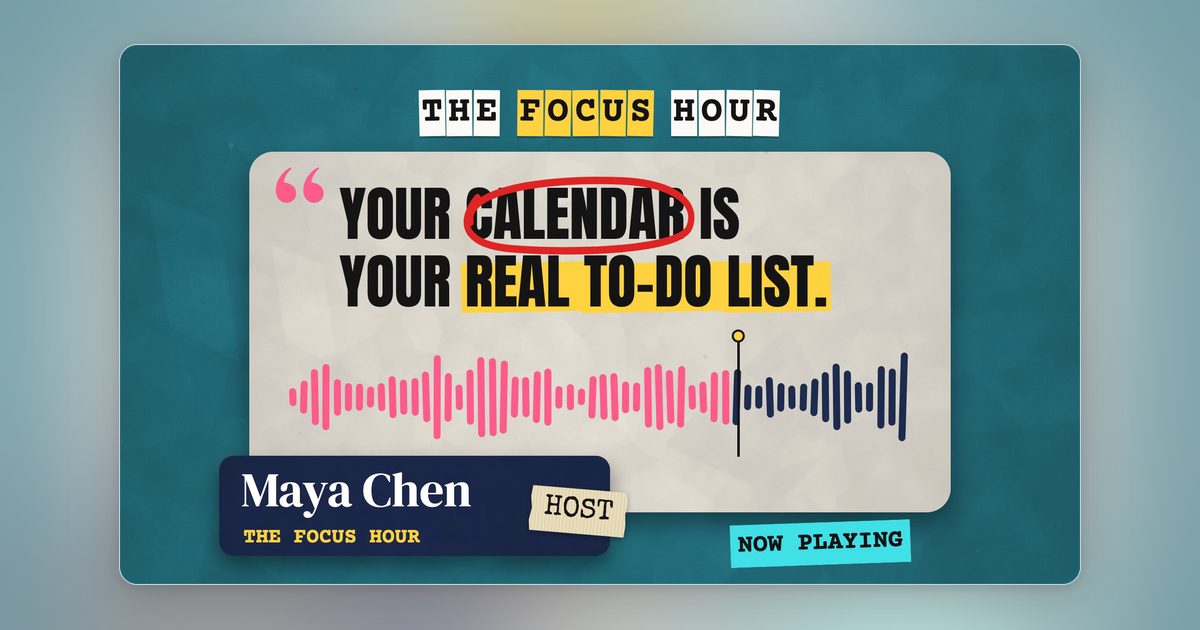
Scroll through any podcast's social feed and you'll see the same clip over and over: a square cover image, a bouncing waveform, captions underneath. The format worked for years; now it's wallpaper. Viewers have learned to skip it before the first sentence lands, which is brutal, because the audio underneath is often genuinely good.
The fix is not more clips. It's better-looking clips. The podcasts pulling real view counts from repurposed audio are layering motion graphics over the waveform: animated backgrounds that loop, kinetic text that lands on the strongest line, small visual moments that match what's being said. None of that requires an editor on retainer anymore, because AI handles the parts that used to take hours in After Effects.
This guide covers the full podcast-to-video workflow: how to pick clips worth publishing, what the different AI tools actually do (clipping tools, avatar tools, and generation tools solve three different problems), and a concrete three-step process for building the motion graphics layer with MotionVid.
Why the standard audiogram stopped working
The feed doesn't skip your clip because it's a podcast. It skips because nothing on screen changes. Recommendation systems on TikTok, Reels, and Shorts weight the first seconds of watch time heavily, and a static composition tells the viewer everything it will ever tell them in frame one. There's no reason to hold, so they don't, and the algorithm reads that early drop-off as a verdict on the whole clip. Motion changes the math: when something on screen is visibly mid-transformation, a background shifting, a quote still assembling, the viewer holds a beat to see what it resolves into. That extra beat is exactly the signal the feed rewards.
Picture the same clip twice. Version one: waveform centered, captions below, static gradient behind. Version two: the guest is talking about burnout, so the background slowly dims as she describes the slide into it, and brightens the moment she says what pulled her out. Same audio, same captions. The second version gives the viewer a reason to watch instead of just listen, and it reads as content someone made rather than an export someone scheduled. That's a motion graphics decision, not an editing decision, and it takes minutes with a tool like MotionVid's motion graphics generator, not an After Effects timeline.
The waveform can stay. It's a useful signal that this is a podcast, and it gives the eye something synced to the audio. The upgrade is what goes behind and around it.
The three kinds of AI tools (and why you probably need two of them)
Search for AI podcast-to-video tools and you'll get three different product categories mixed together. Knowing which is which saves you a lot of trial signups.
1. Clipping tools These ingest a full episode, transcribe it, and pull out short highlight clips with captions. Opus Clip is the best-known example; per its site, it turns audio-only podcasts into branded videos with animated captions, waveforms, and speaker overlays. Podsqueeze covers the same clip-and-audiogram job but bundles it into a broader repurposing suite: per its feature list, it also generates show notes, timestamps, blog posts, and newsletter content from the same episode, where Opus Clip stays focused on the clips themselves. Either way, these tools answer "which 45 seconds should I post?"
2. Avatar and video podcast tools JoggAI and HeyGen generate full video podcasts from audio or text using AI avatars, which matters if you want a face-on-camera feel without filming. That's a different job: turning an audio show into a watchable long-form video, not making clips.
3. Generation tools This is where MotionVid sits. It doesn't transcribe your episode or pick your clips. It generates the visual layer: looping motion backgrounds, animated text, short topic-matched video moments. This is the layer the other two categories mostly can't produce, and it's what separates your clip from the default audiogram.
The practical stack for most podcasters is a clipping tool for selection and captions, plus a generation tool for the visuals. You assemble the layers in whatever editor you already use (CapCut, Premiere, or the clipping tool's own editor).
Step one: find the clips worth animating
Before generating anything, get your clip selection right, because motion graphics on a weak clip is polish on nothing.
Run the episode through a clipping tool, then apply three filters to whatever it suggests:
- The first line works with zero context. If the clip opens with "and that's why, like I said...", cut deeper or skip it. The opening sentence has to work as a cold open.
- One idea per clip. A 45-second clip that makes one point cleanly beats a 90-second clip that makes two points loosely.
- There's a quotable line. You'll want one sentence strong enough to animate as on-screen text. If the clip doesn't contain one, it probably isn't the highlight the AI thinks it is.
Export your shortlist with captions from the clipping tool. Now you have the skeleton: audio, captions, timing. The next step is the part most people skip.
How to do this with MotionVid: the 3-step motion graphics workflow
Here's the exact process for building the visual layer. MotionVid's motion graphics tool generates animation from a plain-text prompt using Animora, its video model, so there's no keyframing involved. You describe the motion, it generates a clip you download and layer into your edit.
Step 1: Generate a looping background for your show Start with one reusable asset: a vertical motion background that matches your podcast's identity. Go to MotionVid's motion graphics tool and describe it plainly: "slow-moving abstract gradient waves in deep navy and amber, light film grain, loops cleanly, vertical format." These sit behind your waveform and captions on every clip, which means one session of generating covers weeks of publishing.
Step 2: Animate the quotable line Take the strongest sentence from each clip and turn it into kinetic text. Prompt for the mood, not just the words: "bold white sans-serif text popping in word by word, slight bounce, dark background" reads very differently from "elegant serif text fading in slowly." Then time it in your editor so each word appears exactly as it's spoken. That sync is what holds attention: when text lands on the voice, the viewer's eye starts anticipating the next word, and anticipation is a reason to keep watching. Text that drifts even half a second off the audio reads as decoration, and decoration gets scrolled past.
Step 3: Add one topic moment per clip For clips about something concrete (a place, an object, a scenario), generate a short visual that matches. An episode segment about early-morning shoots gets three seconds of a sunrise timelapse-style generation. A segment about money gets an animated coin or graph motion. Use text-to-video for scenes and image-to-video if you want to animate your own episode artwork or a guest photo. One moment per clip is enough. The goal is a visual beat, not a music video.
Then assemble: background loop on the bottom layer, waveform and captions from your clipping tool on top, animated quote and topic moment placed at their timestamps. Export at 9:16 for Shorts, Reels, and TikTok, and 1:1 or 16:9 for feed posts if you need them. If you'd rather not start from a blank prompt, MotionVid's templates give you pre-built motion styles you can adapt.
What this costs at publishing volume
The economics matter because podcast repurposing is a volume game. Say you publish weekly and cut four clips per episode. You need roughly: two or three evergreen background loops (generated once, reused for months), one animated quote per clip, and one topic moment per clip, which works out to about eight generations per episode once your reusable backgrounds exist.
MotionVid's Starter plan is $19/month for 500 credits, which the pricing page sizes at roughly 15 to 30 videos a month. A weekly show at about eight generations an episode is 32 or more a month, so that cadence can run past Starter unless your quotes and topic moments are short and simple; check the credit counter on your first episode. Pro is $29/month for 800 credits, roughly 24 to 48 videos at the same rate, and multiple shows or a client roster point to Ultimate at $49 for 1,500. Full details are on the pricing page. Plans are credit-capped, so it's worth being deliberate: generate reusable assets first, one-off moments second.
Compare that against the alternative, which is either a motion designer's day rate for a template pack or learning After Effects yourself. For a podcaster whose actual product is the audio, neither is a good use of the week.
Full video podcast or clips first?
If you're deciding between turning episodes into full-length videos (the avatar-tool route that JoggAI and HeyGen sell) versus a clips pipeline, start with clips. The reasoning is simple: clips are cheap to test, each one is a discrete experiment, and the platforms that reward repurposed podcast content (Shorts, Reels, TikTok) are short-form platforms.
A full AI-avatar video podcast is a bigger production bet with a slower feedback loop. You invest in one long video, wait for it to find an audience, and only then learn whether the format works. Clips flip that: each post is a small, cheap test, and you get a read on what lands within days instead of weeks. There's also less riding on believability, because nothing on screen is pretending to be a person. It's just good-looking motion supporting real audio.
Once clips are consistently pulling viewers back to full episodes, then it's worth testing longer video formats.
Mistakes that kill podcast clips
- Animating everything. If the background moves, the text bounces, and a topic visual plays all at once, nothing reads. One layer moves prominently at a time.
- Captions styled by default. The clipping tool's default caption style is on a million other clips. Change the font, the color, or the highlight behavior. Small change, large difference in how original the clip feels.
- Clips that start slow. The first two seconds decide everything. If the strongest line is at 0:20, restructure so it's at 0:01 and let the setup follow.
- Ignoring loop points. A background that visibly "jumps" every eight seconds reads as broken. Prompt for clean loop points and watch the clip cycle twice before reusing it.
- Posting the same aspect ratio everywhere. A 9:16 clip letterboxed into a feed post looks like an afterthought. Export per platform; it takes minutes.
The takeaway
Here's the test. Take one episode this week, cut three clips, generate one background and three animated quotes, and publish them right alongside your old audiogram format. Same show, same feed, two formats side by side.
Then give it seven days and read the results properly. Views are the loud number, but retention is the honest one. Check whether the motion clips hold people past the first three seconds, where audiograms usually lose them, and whether any of them drove clicks through to the full episode. If they did, you know where your editing time goes from now on. If they didn't, you spent one afternoon finding out, which is cheaper than guessing for another quarter.
Frequently asked questions
Can AI turn my podcast into a video automatically?
Partly. The transcription, clip selection, and caption generation happen with no input from you, a clipping tool handles all three automatically once you upload an episode. The motion layer is the manual part. Generating the graphics takes a few prompts, but layering them under your clips and doing final assembly happens in your editor, and I budget roughly 20 to 30 minutes per batch of clips for that step. It is the one stage nobody has automated well yet, so plan your publishing schedule around it.
Does MotionVid transcribe my podcast or pick clips for me?
No. MotionVid doesn't transcribe your episodes or pick out the best moments, so you'll still want a dedicated clipping tool like Opus Clip to handle that stage. What MotionVid adds comes after the clip exists: [motion graphics from text](https://motionvid.ai/motion-graphics) for animated quote cards and title stings, [text-to-video](https://motionvid.ai/video) for short visuals of the topic being discussed, and image-to-video for animating your episode artwork into moving intros.
What aspect ratio should podcast clips be?
9:16 vertical for YouTube Shorts, Instagram Reels, and TikTok, which is where repurposed podcast clips perform best. Keep 1:1 or 16:9 exports for feed posts and embedding, but build the edit vertical-first.
How long should a podcast clip be?
30 to 60 seconds is the reliable range. Long enough to complete one idea, short enough that a strong opening line carries the viewer to the end. If a moment needs 90+ seconds of context, it's usually better as two clips or a full-episode pointer.
How many AI generations do I need per episode?
Roughly 8–10 per episode once your reusable background loops exist; the full math is in the cost breakdown above. Worth knowing: re-rolls draw credits just like fresh generations, so a clip you regenerate three times before it lands costs three generations' worth of credits, not one. If you publish weekly or re-roll often, the $29 Pro plan lifts the cap from Starter's 500 credits a month to 800.
Do I need footage of the recording session to make podcast videos?
No. That's the point of this workflow. Audio plus captions plus generated motion graphics produces a finished clip with no cameras involved. If you do have session footage, it becomes one more layer, but it's optional.