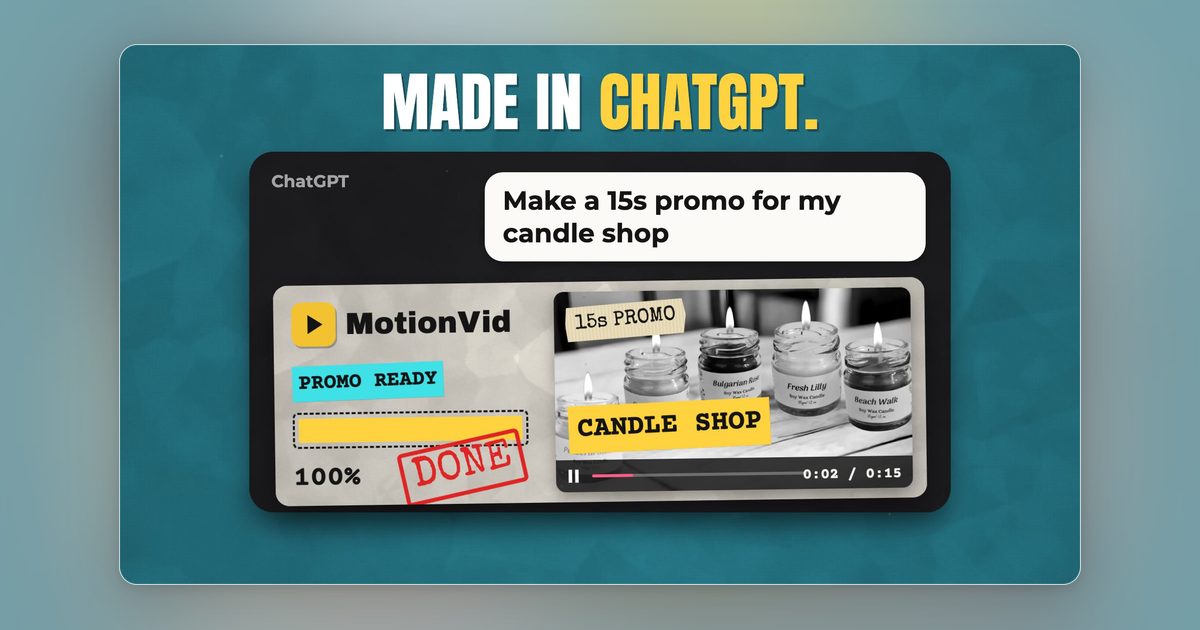
How to Make a YouTube Intro With AI (Step by Step, With Real Costs)
To make a YouTube intro with AI, write a four-part prompt (name, motion, style, 3-5 seconds), generate three candidates in MotionVid.ai and export the best.

Co-founder, MotionVid ·
Your backlog of videos all open on a hard cut because the intro never got made. Paying a motion designer for five seconds of logo animation feels absurd, and template editors hand you the same spinning text as ten thousand other channels.
A YouTube intro is a 3 to 5 second branded animation: channel name or logo, one motion, one sound, before the content starts.
Quick answer
The fastest working method: open MotionVid.ai, an AI motion graphics and video generation tool, and start from an intro template in the template library if one fits your look, swapping in your channel name; if nothing fits, write a four-part prompt (channel name, one motion, one style, 3 to 5 seconds). Either way, generate three candidates and export the best at 1920x1080. The Starter plan costs $19/month for 500 credits and 60 export minutes, per MotionVid's pricing page as of September 2026. The trade-off is that it's paid and credit-capped, and you add the sound effect in your own editor. With a true $0 budget, Canva's free intro maker advertises a watermark-free template download, though the motion is pre-built and shared with other channels, so your intro won't be unique.
Full disclosure: MotionVid is our product, so read the recommendation with that in mind. Only MotionVid carries a hands-on claim in this guide; competitor facts come from their published pricing and product pages with the date stated inline, and none are scored. MotionVid is paid with no free tier, it doesn't add sound in-app, and it doesn't assemble stock footage with voiceover, so the free-template and narrated-montage cases are covered near the end for readers who need them.
How we tested this workflow
Where the facts in this guide come from
The MotionVid steps in this guide were not run as a formal test, and I'm not going to dress them up as one. The prompts in steps 3 and 4 and the Stack Notes example are a worked illustration, and Stack Notes is a stand-in channel name, not a real customer or a real project. The clip at the top of this page is the unedited first output of the step 3 prompt, generated in MotionVid on 20 September 2026 with no re-rolls, so you can see what that prompt actually returns. The steps themselves are drawn from what MotionVid's template library and its motion graphics from text tool offer as of September 20, 2026, which you can check yourself at https://motionvid.ai/templates and https://motionvid.ai/motion-graphics. If a feature or template named below isn't there when you look, the product has changed since that date and the step should be treated as out of date.
MotionVid plan prices come from its published pricing page at https://motionvid.ai/pricing. Prices, plan limits and feature claims for Canva, Adobe Express and InVideo come from their own pricing or product pages, with the date stated next to each figure so you can see how old it is. None of the competitor figures are scored or ranked. All pages were checked on September 20, 2026.
By the numbers
- 3 to 5 seconds, with 7 as the ceiling: the intro length band that keeps viewers watching, the same brief this guide has used since its first version.
- 6 of the top 10 Google results for 'how to make a youtube intro with ai' are tool landing pages rather than tutorials, as of September 2026 (directional, SERP-derived).
- $19 for 60 export minutes on Starter versus $29 for 100 export minutes on Pro: MotionVid's two entry plans, per its pricing page as of September 2026.
- 3 of 30 seconds: a 3-second branded intro eats 10% of a 30-second Short, which is why long-form is where intros belong.
- 400 credits for $20 per seat per month, billed annually: InVideo's Starter plan, per InVideo's pricing page as of July 2026.
- 4 parts to every prompt that works: subject, motion, style and duration.
How to make a YouTube intro with AI, step by step
In one line: write a four-part prompt (subject, motion, style, duration), generate three candidates in MotionVid, export the best one at your channel's resolution and frame rate, then cut it in after your hook with one sound.
Before step 1, have your channel name typed out or your logo file saved somewhere you can find it. Open your editor and note the sequence resolution and frame rate, because you'll export to match them. Set aside 15 minutes, which covers writing the prompt, generating, and exporting with time left over.
Steps 1 and 7 apply to any tool you happen to use, and steps 2 to 6 assume you're working in MotionVid.
1. Write the brief before you open any tool
Decide the length (3 to 5 seconds, 7 at most), what's on screen (your channel name or logo, no tagline) and the mood that fits your niche. A finance channel and a Minecraft channel need different motion, and the brief is where you say which one you are. Write it as one line, like this:
> 4 seconds, channel name only, clean tech look, dark grey, one teal accent
The output of this step is that single line. The mistake: a fifteen-second intro. Viewers decide whether to stay in the first moments of a video, and no tool rescues a long logo spin.
2. Pick a template or a blank prompt in MotionVid
Open the template library and filter for intro and logo animation styles. Templates are the fastest route because the timing and pacing are already solved; you're only swapping in your name, colours and style direction. If you have a specific picture in your head that no template matches, start from the motion graphics tool instead and describe it in plain text. Both routes are generated by Animora, backed by Miltos, so output quality is the same and the template is only a proven starting structure.
The output: a template selected or a blank prompt box open, with your brief pasted in. The mistake: picking the busiest template because it looks impressive in the preview. The intros on big channels feel expensive because they're restrained.
3. Write a four-part prompt
This step separates a generic intro from one that looks made for your channel, and the difference is entirely in the description. A weak prompt reads "cool intro for my youtube channel" and produces something watchable and forgettable. A strong prompt names the subject, the motion, the style and the duration:
> The words 'STACK NOTES' assemble from thin geometric lines snapping into place, white text on dark grey, one teal accent sweep left to right, clean tech look, 4 seconds
Starting prompts for common channel types, with your own name swapped in:
- Tech or SaaS channel: "Channel name built from clean geometric lines snapping into place, white on dark grey, one accent colour sweep, 3 seconds"
- Finance or crypto channel: "Channel name rises out of a thin line chart drawing itself, dark navy background, gold accent, restrained motion, 4 seconds"
- Faceless explainer channel: "Channel name cut from bold paper shapes sliding into a collage, cream background, flat colours, 4 seconds"
- Education or course channel: "Channel name written on screen as if by a marker, bright flat background, playful bounce at the end, 4 seconds"
- Ecommerce brand channel: "Logo lands in the centre with a soft product-shot blur behind it, warm white background, gentle settle, 3 seconds"
Explainer channels can also pick a named style pack such as Vox or Johnny Harris (a bold cutout look and a collage documentary look; the names are inspired by those creators' styles and MotionVid has no affiliation with either), which keeps the intro consistent with B-roll made later in the same style.
The output should show your name resolving cleanly by the final second with one dominant motion. The mistake: prompting in adjectives. "Epic cinematic logo reveal" gives the model almost nothing to work with.
4. Generate three candidates and refine one variable at a time
Run the prompt, then run it twice more with a different motion or colour so you have three visibly different candidates side by side. The first result usually feels great because it's new, not because it's good. Pick one and adjust a single variable per pass:
> Same intro, slower and more minimal, keep the teal sweep, remove the background texture
Budget two or three refinement passes per intro and stop as soon as one candidate matches the brief. An intro rarely needs more than a handful of generations. The mistake: committing to the first render.
5. Make a separate vertical version if you post Shorts
If you also cut Shorts, generate a 9:16 version from the same prompt rather than cropping the widescreen export, because the composition will be wrong otherwise:
> Same intro in 9:16 vertical, channel name stacked on two lines, motion centred for a phone screen
The output: a second file with the name readable on a phone. The mistake: cropping the 16:9 version and losing half the letters.
6. Export at your channel's resolution and frame rate
Export the MP4 from MotionVid at 16:9 and 1920x1080, which is the shape every standard upload expects, so it lands on your timeline without conversion. Before you cut it in, read the file's frame rate from the clip properties in your editor or by right-clicking it in Finder or Explorer. If it differs from your sequence rate, interpret or conform the clip in Premiere, Resolve or Final Cut so it matches. The output: a clip that plays at the same rate as everything around it. The mistake: assuming the rate matches because the resolution does.
7. Add one sound and place it after the hook
A silent intro feels broken. MotionVid generates music and sound effects with the clip, which is enough for most channels; when you want one exact sting, add it yourself. In Premiere, DaVinci Resolve, CapCut or Final Cut, drop one short sound (a whoosh, a hit or a musical sting, under a second) on the frame where your name resolves, then save the clip in your project template or a shared media bin so it's one drag away on every edit. Open each video with 10 to 20 seconds of the content that made someone click, play the intro, then continue. The mistake: cold-opening on the branded intro, which costs viewers before they've seen anything.
Worked example, start to finish
Take a hypothetical tech explainer channel called Stack Notes. Brief: 4 seconds, name only, clean tech look. In MotionVid, start from a blank motion-graphics prompt and paste: "The words 'STACK NOTES' assemble from thin geometric lines snapping into place, white text on dark grey, one teal accent sweep left to right, clean tech look, 4 seconds." Generate three candidates, keep the one where the lines snap in fastest, and refine once with "same intro, slower final settle." Export at 1920x1080, 30fps, MP4. In the editor, drop a single 0.4-second hit on the frame the last letter lands, and place the clip at 00:15 after the cold open. Done, and it doesn't get touched again until a rebrand. See the logo animation guide if your channel leads with a mark instead of a wordmark.
Tips that make it look professional
These are checkable on your own export, not matters of taste.
- Let the name fully resolve by about two-thirds of the runtime and hold it still for the rest. A 4-second intro whose text is still moving at 3.9 seconds reads as unfinished.
- Test readability at phone size: shrink the export to a quarter of your screen. If the channel name blurs into the background, raise the contrast or enlarge the text and regenerate.
- Put the sound on the resolve frame, not the first frame. One hit under a second beats a music bed; a bed makes a 4-second clip feel like an ad.
- Export H.264 MP4 at your channel's exact resolution and frame rate, then scrub the cut between intro and content frame by frame. Any stutter there is a frame-rate mismatch.
- Keep one visual language across thumbnail, intro and lower thirds. Loud colourful thumbnails with a moody minimal intro make the video feel like it changed channels.
8. MotionVid: best for a generated intro that's yours, plus the B-roll behind it
MotionVid generates the motion from your description with Animora, backed by Miltos, so two channels using the same template still get visibly different intros, and the same motion graphics tool turns a pasted script into matching B-roll and infographic scenes for the video itself. Starter is $19/month for 500 credits and 60 export minutes, per MotionVid's pricing page as of September 2026. Hands-on limits: it's paid with no unlimited tier. It does generate music and sound effects with the video (the clip at the top of this page came back with its own music), though for an exact sting you drop your own file in your editor. It's the default pick here because the intro and the explainer scenes come out of one workflow.
9. Canva: consider only for a free template intro with your text swapped in
Canva's intro maker gives you template-based intros with watermark-free downloads, per its intro-maker page as of September 2026. The motion in each template is pre-built, though, so every other channel that picked the same one opens on the same animation you do, and the AI part is thin.
If you won't pay for anything yet, there's a second free route that doesn't need Canva or a template library at all. Open CapCut or DaVinci Resolve, drop your channel name as a text layer on a solid background, and apply one of the built-in text animation presets. Let the name settle and hold still for the last third of the clip, since that's the frame viewers actually read. Add a single sound, a whoosh or a short hit, then export at your channel's resolution and frame rate rather than the editor's default. You'll spend about ten minutes and end up with a clean two-to-four-second intro.
That is exactly what step 1 and step 7 of the guide above already cover: pick the words and the hold, then export to match the channel. The catch is the same one Canva has. The animation preset ships with the editor, so any other channel using that preset opens the same way you do. It's a fine starting point while you're under a few hundred subscribers and don't want to spend money, and it's easy to replace later with an intro built from your own logo or a text-to-motion-graphics prompt at motionvid.ai/motion-graphics once the channel earns it.
10. Adobe Express: consider only if you already work inside Adobe's apps
Adobe Express offers a free online intro maker where you pick a template and upload your own media, per its intro-maker page as of September 2026. It's a sensible pick if your logo files and brand kit already live in Adobe. As with Canva, you're editing a template rather than generating motion. Pricing for paid tiers was not verified as of September 2026.
11. InVideo: consider only for a longer opener built from stock clips and voiceover
InVideo's AI intro maker takes a prompt and assembles scenes, stock media, voiceover, subtitles and sound effects, per its product page as of September 2026. That makes it the better tool for a 20 to 30-second channel opener with narration, and the wrong one for a tight 4-second branded sting. InVideo's Starter plan is $20 per seat per month billed annually for 400 credits, and Plus is $50 per seat per month billed annually for 2,000 credits, per InVideo's pricing page as of July 2026.
What it costs
In one line: if you ship 60 short clips a month, MotionVid's Starter plan sits exactly at its export-minute cap, so Pro at $29 is the plan with headroom.
| Plan | Price per month | Credits per month | Export minutes per month | Notes |
|---|---|---|---|---|
| Starter | $19 | 500 | 60 | |
| Pro | $29 | 800 | 100 | 4K infographic exports |
| Ultimate | $49 | 1,500 | 200 | developer API, bring-your-own-keys |
| Creator | $249 | 8,000 | unlimited | developer API, bring-your-own-keys |
Source: MotionVid's pricing page, September 2026. All plans are credit-capped, and every paid plan can generate from Claude and other AI apps through MotionVid's MCP connector.
Say you make 4 intro variants a month (a main 16:9, a 9:16, and two seasonal swaps) and fill the rest of your 60 export minutes with explainer B-roll clips under a minute and a half each. On Starter that's $19 for 60 export minutes, about $0.32 per exported clip, with zero margin for a re-export. On Pro it's $29 for 100 export minutes, about $0.48 per clip at 60 clips, and 40 export minutes of slack.
Credits are the second ceiling, and the harder one to pin down in advance. MotionVid publishes a monthly credit pool per plan but not a fixed cost per generation, because the draw varies by model and clip length. So the workload above (4 intros at roughly 5 refinement generations each, or 20 generations, plus 56 B-roll exports that each land in one or two tries) either fits inside a 500-credit Starter pool or doesn't, depending on what a single generation at your chosen model and length costs. The practical test takes an hour: watch the credit counter over your first three generations, multiply the average by your expected monthly count, and you'll know whether credits or export minutes bite first.
To run it yourself: count the finished clips you actually download in a month, not the generations you try, and divide the plan price by that number. Compare that figure against a motion designer's quote for a single custom intro and against InVideo's per-seat pricing, remembering that InVideo's credits buy a different unit of output, so compare on finished exports, not credits.
How to choose
In one line: MotionVid for any short branded intro, generated or from a template; Canva only at a true $0 budget; InVideo only for a stock-footage montage.
- Do you want the motion generated from your description, or a preset template? Either way MotionVid covers it: generate from a four-part prompt (subject, action, style, length), or start from an intro template in the library and swap your name in. Only if your budget is exactly $0 does Canva's free template maker become the fallback, with the trade-off that other channels share the same animation.
- Is the opener a 3 to 5-second branded sting, or a 20 to 30-second narrated opener with subtitles? Sting: MotionVid. Narrated 20 to 30-second opener: still MotionVid if you want generated scenes cut to your script or voiceover, since the motion graphics tool turns pasted narration into matching scenes. Consider InVideo only if the opener must be assembled from stock footage clips, which MotionVid doesn't source.
- Will you also need animated B-roll or infographic scenes inside the videos themselves? Yes: MotionVid, one workflow for both. No: still MotionVid for the intro; Adobe Express is worth a look only if your brand kit already lives in Adobe and you're happy with a template rather than generated motion.
Final verdict
In one line: for a YouTube intro that's generated from your own description and matches the B-roll in the rest of your videos, MotionVid on the $19 Starter plan is the pick, and the whole job takes one session.
The prompt formula does the heavy lifting. Subject, motion, style and duration, three candidates, one variable per refinement, export at your channel's frame rate, sound on the resolve frame, intro after the hook. That workflow holds even if you never open MotionVid.
Where MotionVid loses: on a true $0 budget, Canva's free intro maker gets you a watermark-free template download and MotionVid has no free route this guide can vouch for. For a narrated 30-second opener assembled from stock footage, InVideo is built for it and MotionVid isn't. If you already have footage you want cut into an opener, any editor beats a generator. For a wider survey of the category, see the best AI video generators roundup.
Frequently asked questions
What is the fastest way to make a YouTube intro with AI?
If you don't have a brief yet, start from an intro template in [MotionVid's template library](https://motionvid.ai/templates) and swap in your channel name, since a preset animation gets you to a usable draft faster than a blank prompt. Fall back to the four-part prompt (channel name, one motion, one style, 3 to 5 seconds) only when no template fits the look you want, and refine one variable at a time until a candidate matches. Download the winner at 1920x1080 in your channel's frame rate, keep or replace the generated sound, and place the intro right after your opening hook.
How long should a YouTube intro be?
Three to five seconds, with seven as the absolute ceiling. At 24 to 30fps that's roughly 72 to 150 frames, which is room for exactly one motion and one sound. Viewers decide whether to stay in the first moments of a video, so a long branded intro is one of the most common reasons people click away. Keep the channel name or logo only and skip the tagline.
Can I make a YouTube intro with AI for free without a watermark?
Yes for a template intro: Canva's free intro maker advertises watermark-free downloads and Adobe Express offers a free intro maker, per their pages as of September 2026. The motion is pre-built, so the result is shared with other channels using the same template. Generated motion from a description is a paid feature; MotionVid starts at $19/month. If you want to compare paid options before committing, our roundup of the [20 best AI video generators](/blog/20-best-ai-video-generators) covers pricing and what each tool does well.
What should an AI intro prompt include?
Four parts: the subject (your channel name or logo), the motion (assembles from lines, slams in with a glitch, writes on like a marker), the style (colours, background, mood) and the duration in seconds. "White logo assembles from thin light streaks on black, 4 seconds" gets a usable first pass; "epic cinematic logo reveal" doesn't. Then refine one variable per pass rather than rewriting the whole prompt.
Should my intro play at the very start of the video?
No. Open with 10 to 20 seconds of the content that made someone click, then play the intro, then continue. Shorts are the stricter case: a 3-second intro is 10% of a 30-second Short, which is why most large channels skip intros on Shorts and keep them for long-form uploads. If you run a Shorts-heavy channel, put the effort into the first frame instead.
What AI tool can a faceless YouTube channel use for the intro and the animated B-roll?
MotionVid covers both: the intro comes from a short prompt, and the motion graphics tool turns a pasted script or voiceover into matching B-roll and infographic scenes. Picking a named style pack such as Vox or Johnny Harris (names inspired by those creators' looks, with no affiliation) keeps the intro and the scenes in one visual language. Starter's 60 monthly export minutes cover a weekly upload schedule with room for the intro variants, as long as the B-roll you export each week runs under about 12 minutes.
What resolution and frame rate should I export the intro at?
Export at 1920x1080 in 16:9 for standard uploads, and generate a separate 1080x1920 9:16 version for Shorts rather than cropping the widescreen clip, since a crop throws away the framing you built the intro around. Match the frame rate to your timeline, usually 24, 25 or 30fps: check the downloaded file's rate in your editor's clip properties, and if it differs, interpret or conform the footage to the sequence rate before cutting instead of letting the software resample it on import. Any stutter on the cut between intro and content is a frame-rate mismatch, not a resolution problem.
Do I need editing skills to make an AI intro?
No. You describe the intro in plain text or customise a template, and the model generates the animation. The only editing task left is dropping the exported MP4 into your video and adding one sound effect, which takes a couple of minutes in any free editor such as CapCut or DaVinci Resolve. Save the clip in your project template so you never repeat the step.
Written by Nick Nicolaou, co-founder of MotionVid.ai. A working photographer and videographer, Nick uses MotionVid daily for product and launch videos.